98.8% Of all customers recommend us, we're so confident about our results we publish all reviews and stats
View Live Stats View Reviews


Call us on 0207 987 3777 or Search our website
In partnership with Clip Training (a leading developer of software training solutions), we are able to offer a comprehensive range of eLearning courses delivered in a proven and effective format.
Our eLearning is scalable from individuals and small teams all the way to enterprise deployment. A growing training library of over 70 courses is available as standard and flexible bespoke solutions can also be created.
By adopting the latest eLearning design standards, eLearning can be accessed online across multiple devices, desktop, tablets, and smart phones.
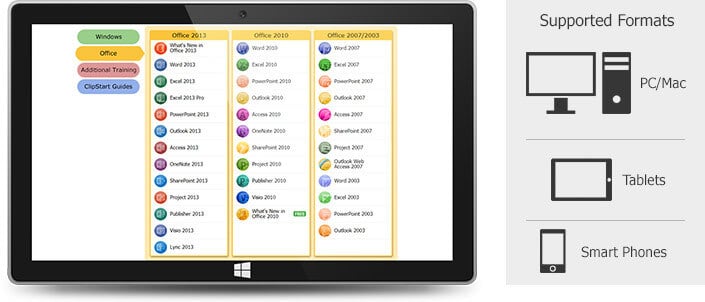
Training courses are easily located through the training library for immediate access.
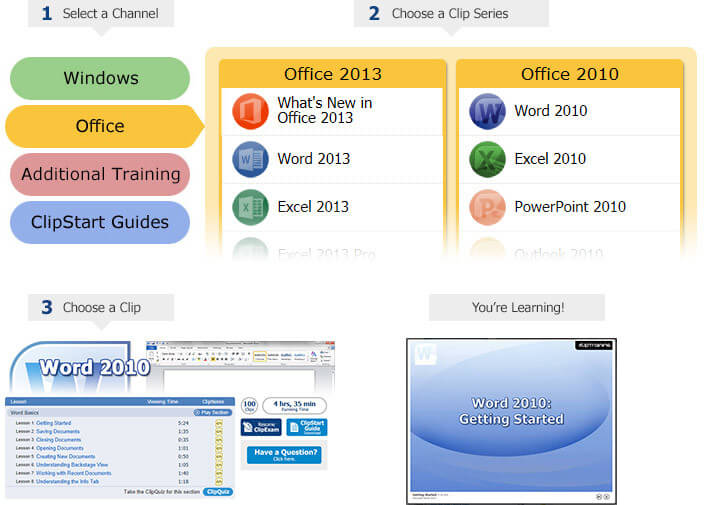
Courses are structured as task-based, short training clips. Retain more information with to-the-point lessons.
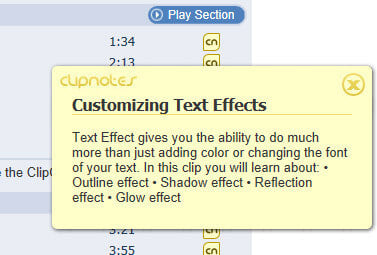
A brief description on any lesson can be found in the ClipNotes.
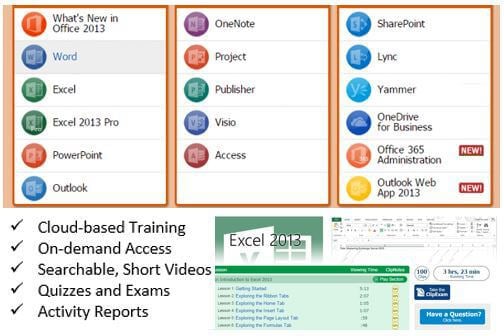
Specific course clips can be found with the built-in search feature.
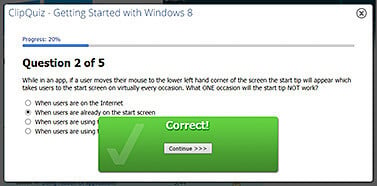
End of section self-assessments enable users to identify areas to improve and learn at their own pace.
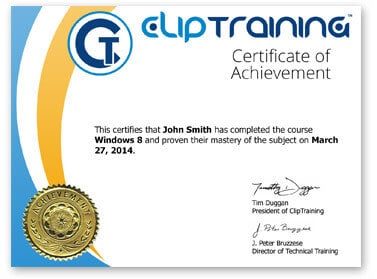
Optional exams can be taken on any topic to prove proficiency.
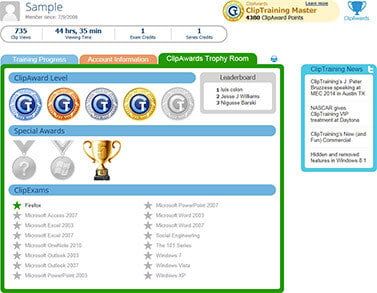
ClipAwards recognises users hard work and encourages them to continue improving their skills.
By completing training clips, taking quizzes and exams learners can earn points towards a ClipAward.
Each ClipAward is visible in a Trophy Room and administrators are notified of users progress.
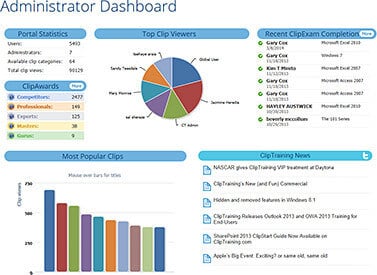
The ClipTraining portal incorporates a Learning Management System (LMS) that organises and tracks training activity (from a handful to thousands of users). Activity data of users includes location, department, lessons viewed and Exam scores. Portal administrators can be created to manage users by groups if required.
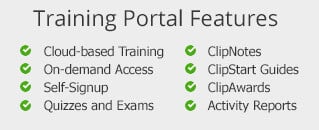
The ClipTraining LMS provides several benefits including:
To discuss you requirements or to arrange a free trial to see why Clip Training is so effective, please contact us.
We are the exclusive UK distributor for Clip Training eLearning solutions.
If you would like to learn more about our reseller program and benefits feel free to get in touch.

TrustScore
4.9
/ 5
2082 reviews




Formerly Best Training
© 2024 . All Rights Reserved.
All prices offered for business users and exclude VAT. E&OE
2nd Floor, CA House, 1 Northey Street, Limehouse Basin, London, E14 8BT. United Kingdom
We'll call during UK business hours
Server loaded in 0.08 secs.